
Welcome to Keeper – Your Secure Password Manager

Keeper Setup Process
You can DIY, but reach out with questions! 😊
Follow steps sequentially; it takes about 10-15 minutes, including tips. Once you complete Step 1, you’ll be prompted with a To-Do list in Keeper that will walk you through the rest of the steps.
- Set Your Master Password Create a memorable Master Password – your key to everything in Keeper.
- Remember, this is the ONE password you’ll by typing every day. We recommend a Pass-Phrase.
- Example: MySillySmiles@17!
- Remember, this is the ONE password you’ll by typing every day. We recommend a Pass-Phrase.
- Install the Browser Extension Follow on-screen prompts or links below.
- Pin the extension to keep it visible in your browser for easy access.
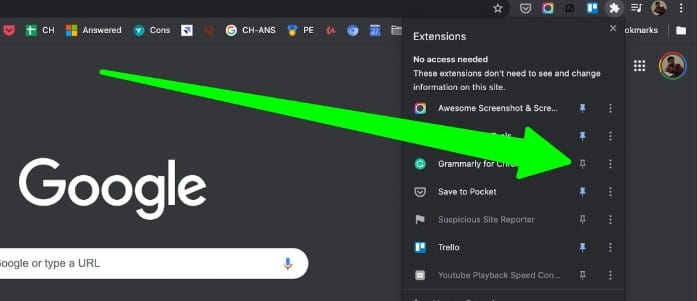
—
- Import Passwords from Your Browser (optional)
- Follow the on-screen instructions.
- Set Up MFA on Your Phone & Save Backup Codes Enable Multi-Factor Authentication and save codes to your Documents folder.
- Don’t skip this step!
- Highlight codes, CTRL+C to copy, paste into a Word doc, and save.
- Generate & Save Recovery Phrase
- Don’t skip this step! You need these codes if you ever forget your Master Password.
- Highlight codes, CTRL+C to copy, paste into a Word doc, and save.
- Final Steps
- Important: Disable Browser Built-In Password Prompts Prevents conflicts.
- Follow the How-To Guide (scroll down the page and find the instructions for your browser)
Congratulations! Basic setup is complete. Explore these tips for optimal use.
Additional Resources:
Import Passwords from Other Browsers/Apps Bring in data from LastPass or others (desktop app required). How-To Guide
Mobile App Download Here